
Help Documentation
EquipMaint 2.0 Help Documentation
EquipMaint 2.0 is the application we use to maintain records on equipment maintenance. Employees can scan equipment and quickly attach it to a location and document a specific task they are performing to maintain that equipment.
Getting Started
In order to get started using EquipMaint 2.0, you will need to create an account and have it get approved by an administrator. It will also need to be marked as trained so you can have access to the system. This will give you login credentials and the ability to start logging maintenance records. You will need the following information for the registration process:
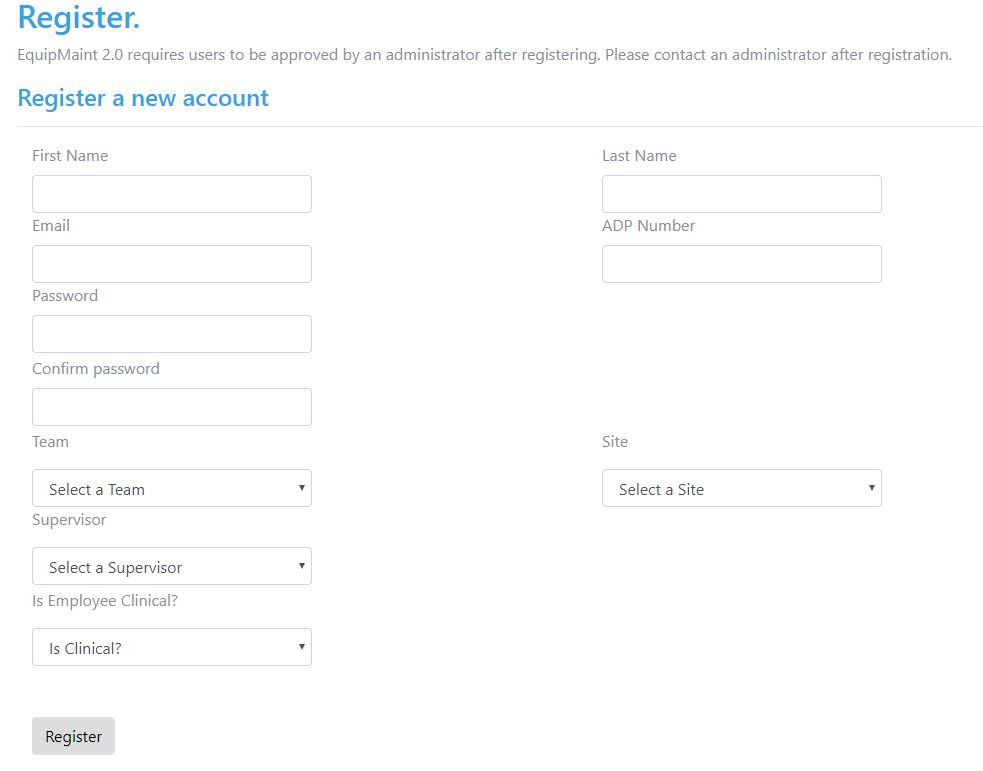
Please make sure the ADP number is accurate as this will be used to scan records.
Once a user is registered, the administrator has to approve the account, assign a role and mark the user as trained. This can all be done in the approve accounts and verify employee training views. The scanner role is strictly for clinical staff to scan equipment in and out of the DME area and clean dirty equipment. Users can scan and also log scheduled maintenance records. Admins can do all activities and can also assign roles and verify training for users.
From there, simply log in with your username and password to get started. Depending on your access level, you will be given access to different screens and actions.
Once you log in, you will immediately be taken to the scan screen. This area will allow you to quickly scan a piece of equipment, a location, and a employee ADP number. If your account is currently associated with an employee record, this information will populate automatically. From there, press either C, O, M or R for creating a cleaning record, other record, moving record or repair record respectively.
Learn More About the Scan ScreenEquipment Screen
The equipment screen is the starting point for managing equipment. It is only available to members with access level of user or admin. Scanners will only be able to scan clean and move records. Here you can search and sort all equipment based on its availability, type and description.
Learn More About the Equipment ScreenEmployees Screen
The employees screen contains records on employees. Employee records are used for logging maintenance. Unlike a user record which is used for your login credentials, employee records only affect the logging of data. On the employees screen, you can quickly see data on every single employee in the system and with the appropriate permissions, these fields can be edited, deleted or created.
Learn More About the Employees ScreenMaintenances Screen
The maintenance screen allows you to view maintenance logs, check scheduled maintenances and update records as needed. There are screens for adding a new maintenance or a new scheduled maintenance as well as an export to excel feature for reporting purposes.
Learn More About the Maintenances Screen